
TestDome has a vast library of handcrafted questions created by our team, but you can also create your own custom questions to add to your tests or interviews.
To create a custom question just go to app.testdome.com/questions/create
or click on the “Create Question” button in the top right corner of the Library page: app.testdome.com/library
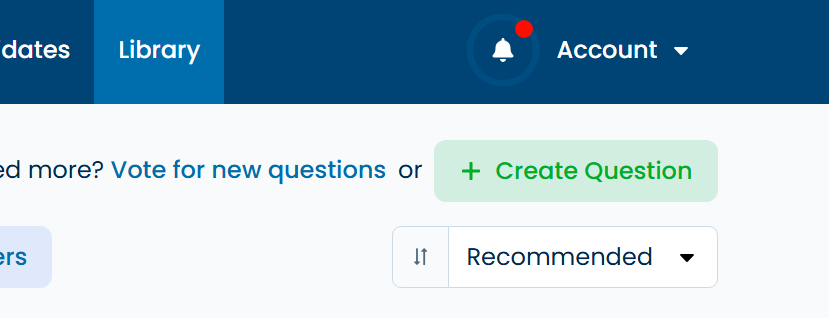
You will see a list of all the different question types that you can use to create custom questions. To learn more about each question type and how it’s scored, please see Question Types and Scoring.
Summary Tab
The ‘Summary’ tab is where you can configure meta information about the question.
Question Name - The name of the question that will be displayed in the library and on your tests and interviews. We recommend choosing a unique name so that it's easy to find when creating a test or interview.
Skill - You can choose an existing skill from the list or create a custom skill. This will help you filter the questions in the library.
Topics - You can choose one or more topics from the list or create custom topics. You can use topics to further filter questions within a chosen skill.
Expected Time - Time limit for the question. We recommend being generous with time because candidates often need to read the question several times to fully understand it.
Points - The number of points given for correct answers. TestDome questions have between three points (for easy questions with a narrow scope) and ten points (for hard questions with a wide scope). We recommend using a similar scale.
Content Tab
The ‘Content’ tab is where the question’s content is drafted.
Description - Here you can draft the main body of the question. The built-in editor has all the common tools necessary to format the content, including options to add images, videos, and external links.
Below you will find how to create some of our most common question types.
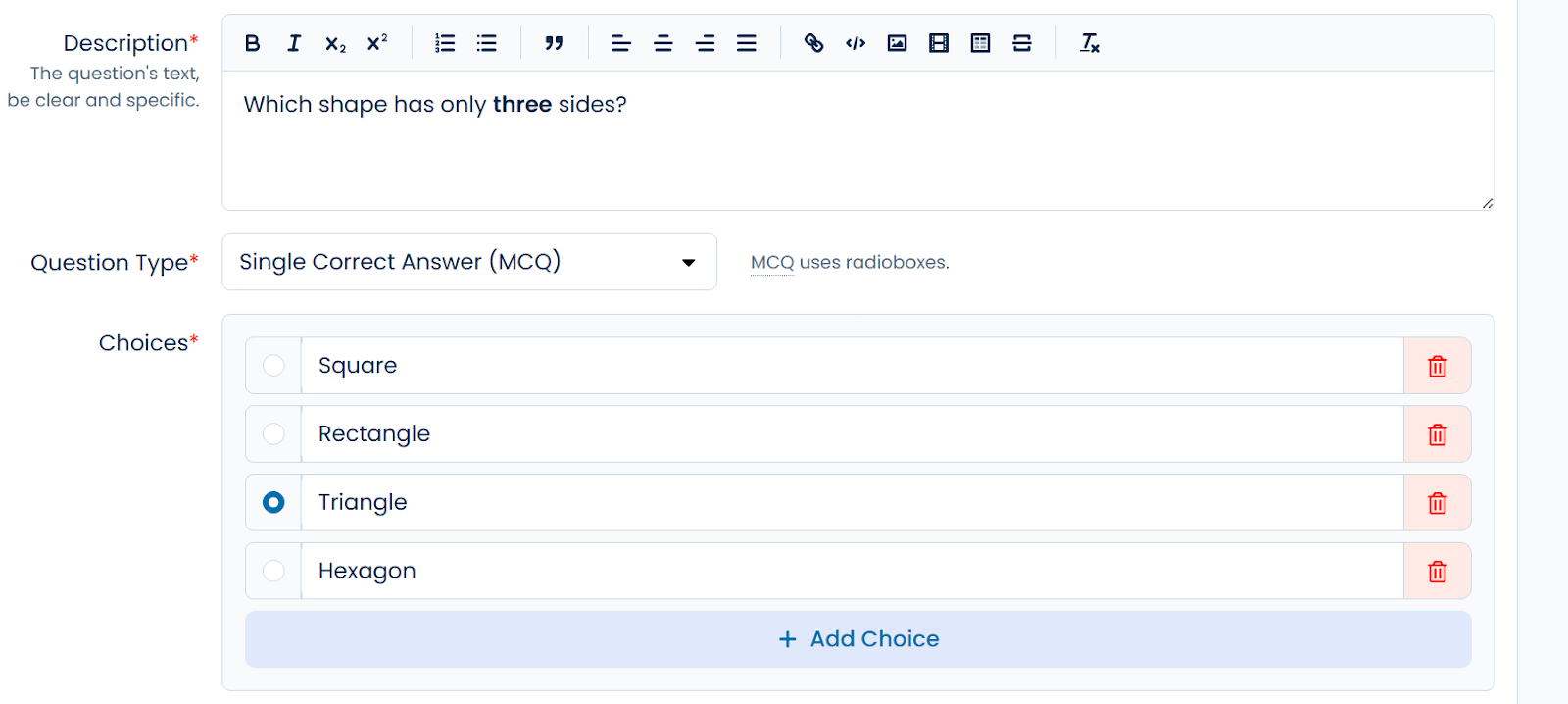
MCQ - Multiple Choice Question
Fill in the choices and select one correct answer.
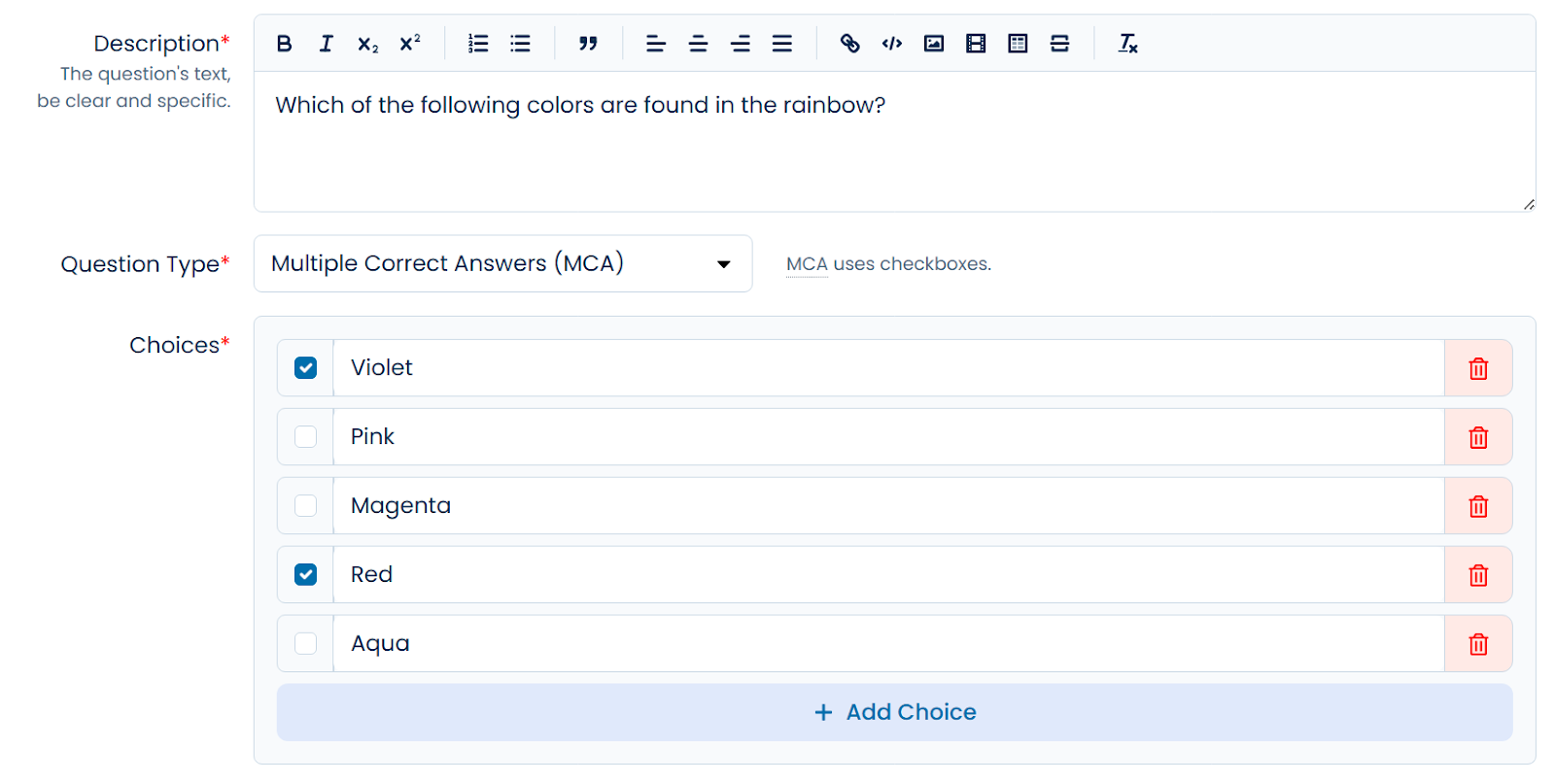
MCA - Multiple Correct Answers
Fill in the choices and select all the correct answers.
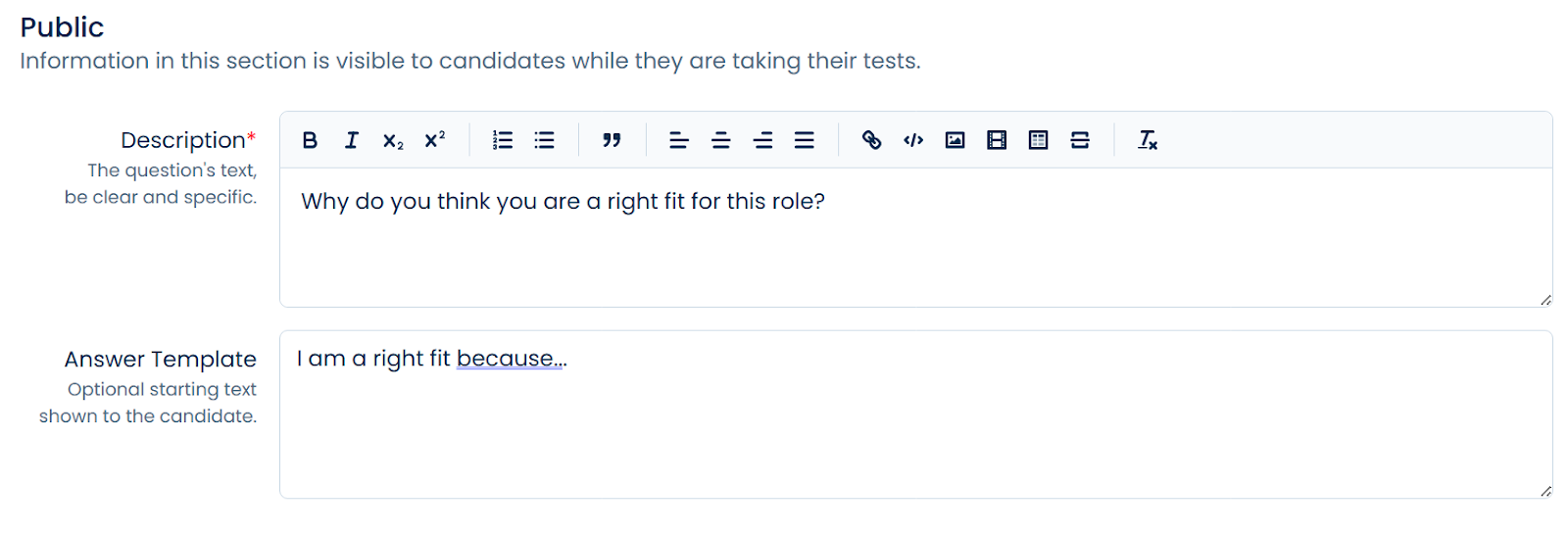
Text Answer
Text answers are manually scored. You can optionally specify a starting text that will be shown to candidates in the text box.
FILL - Fill in the blanks
Use underscores( _ ) in the question description to indicate a blank. You can define the correct answer for each blank in the ‘Internal’ section. The number of underscores you use defines the size of the input box in the question.
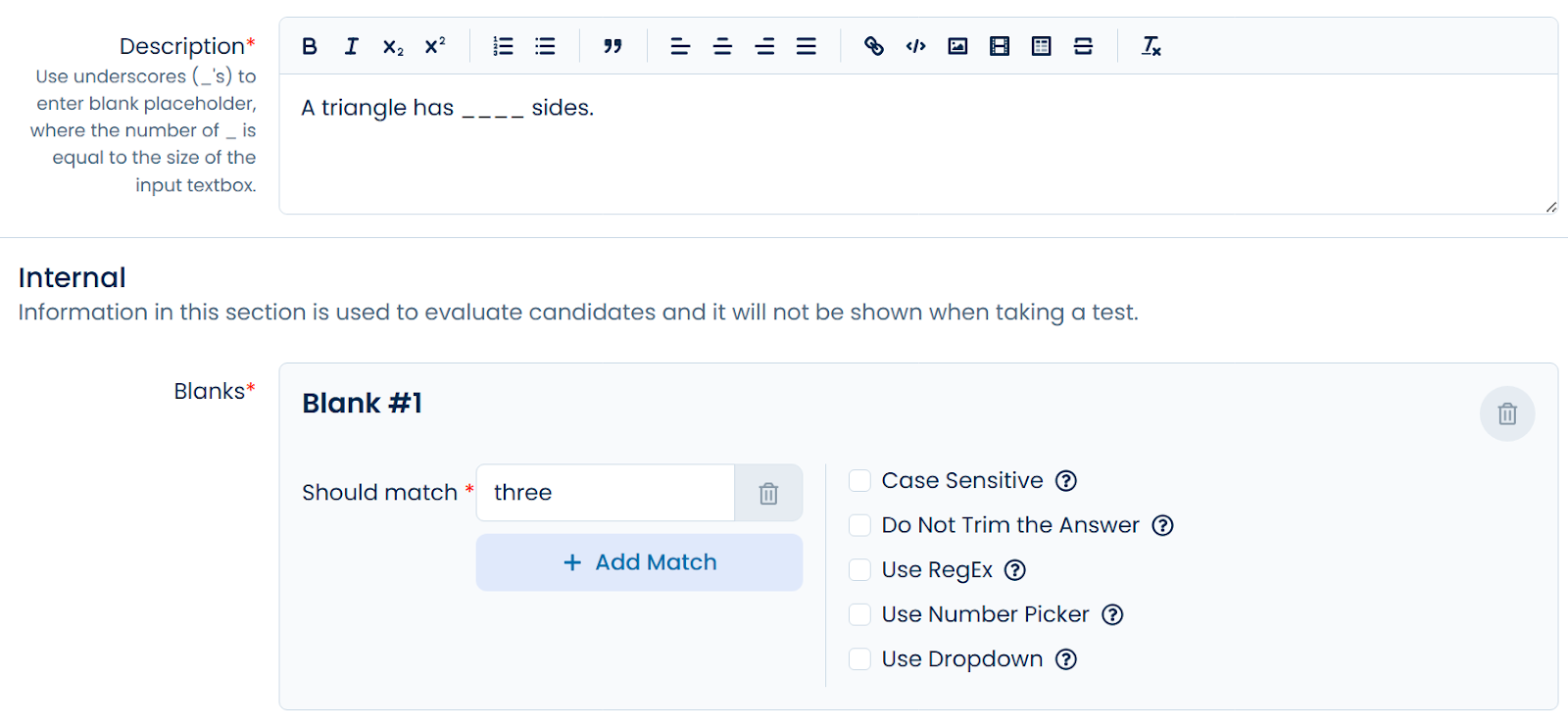
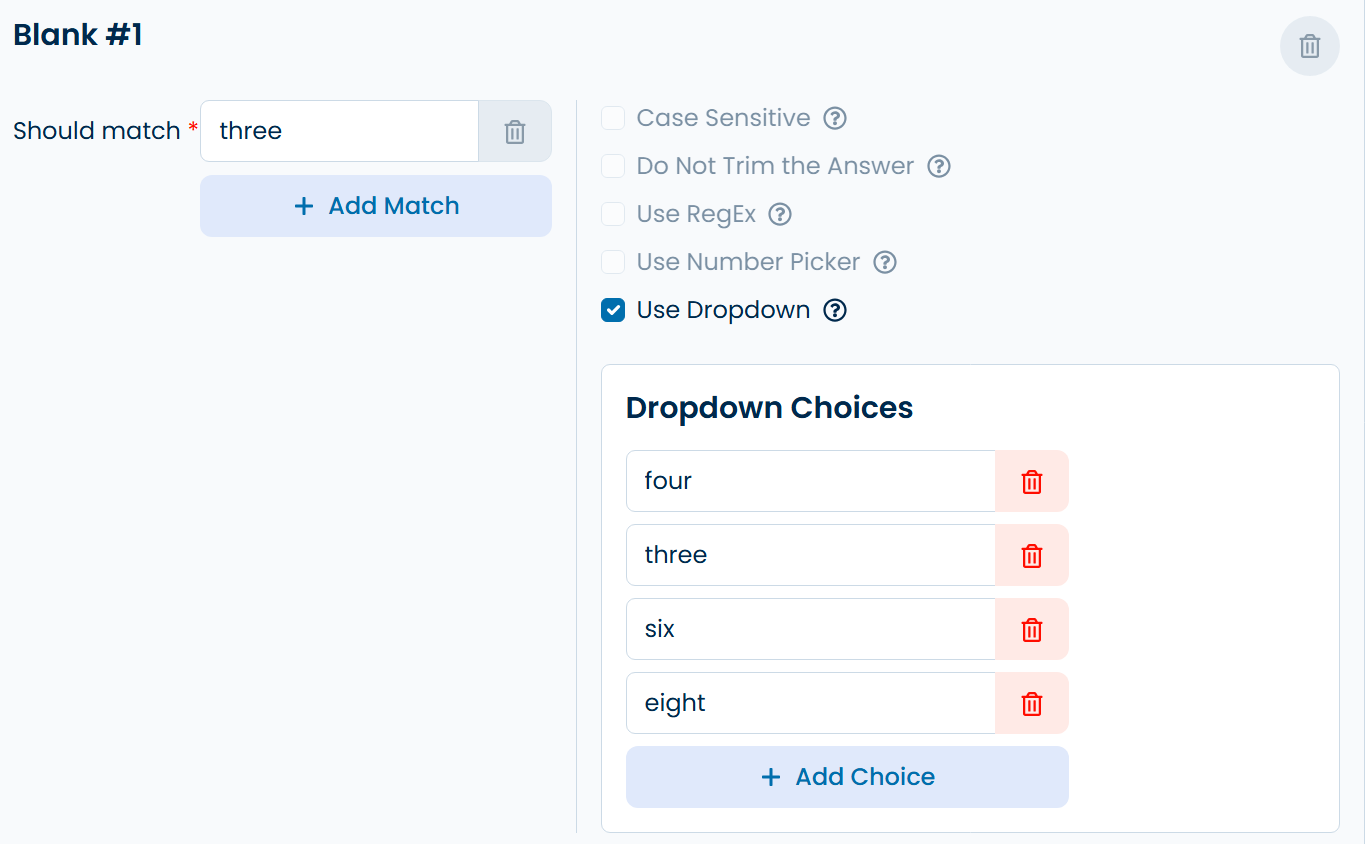
A blank can also be a dropdown. You can define the options for the dropdown separately. The text for the correct answer must match one of the dropdowns for the question to be valid.
Live Coding
Live coding questions have three main sections -
Template - This is the starting code candidates will see when answering the question.
Test Cases - This is the test suite used to test your code.
Correct Answer - This is the solution to the question. It must score 100% on the test cases to be a valid question.
Preview as Candidate
Before the question is saved, if the question is in a valid state, you can click on “Preview as Candidate” to preview how candidates will see the question.